
How to add a Stop Pay
Edited
A user can choose to stop a payment on a single check or a range of consecutive checks. The stop payments feature is available to both iOS® and Android™ Mobile users, but appears in a web-format when selected from the Mobile application.
To stop a check payment, a user must have the View stop payment and Add stop payment permissions.
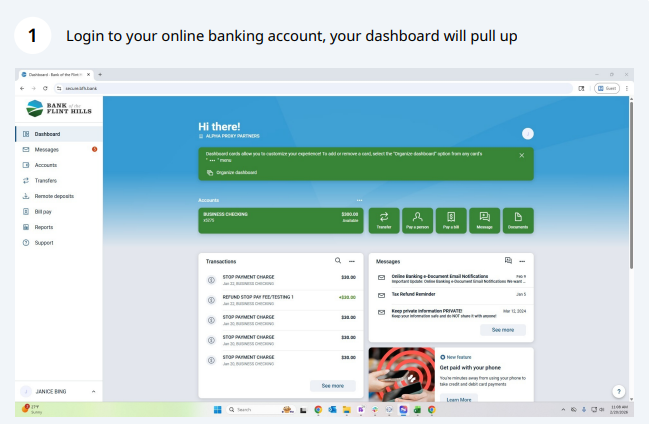
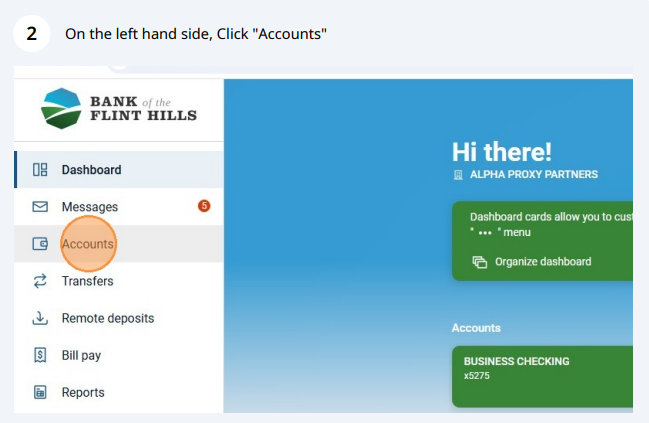
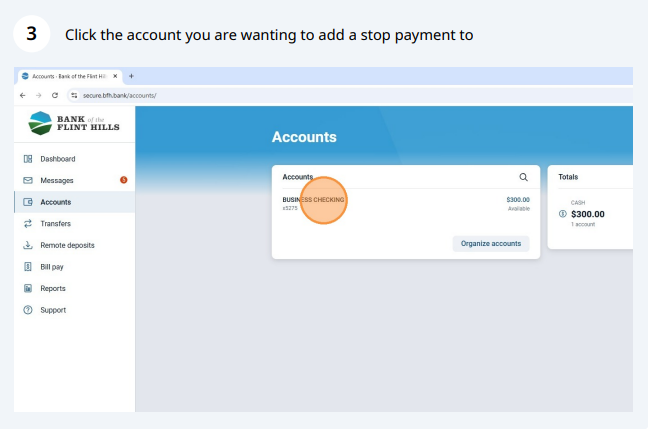
From the dashboard on your online banking, select the Accounts tab
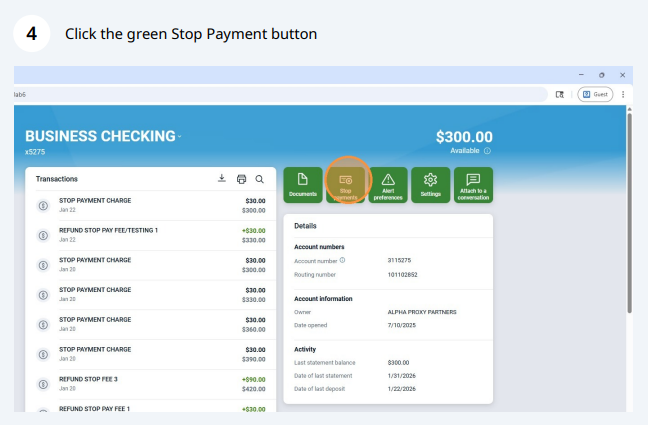
Select Stop payments
Choose an option.
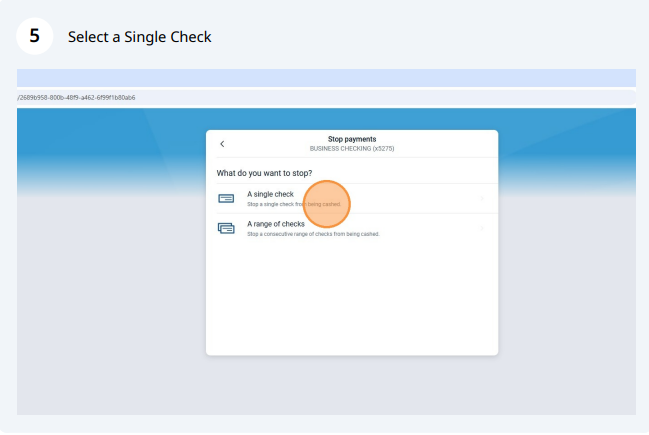
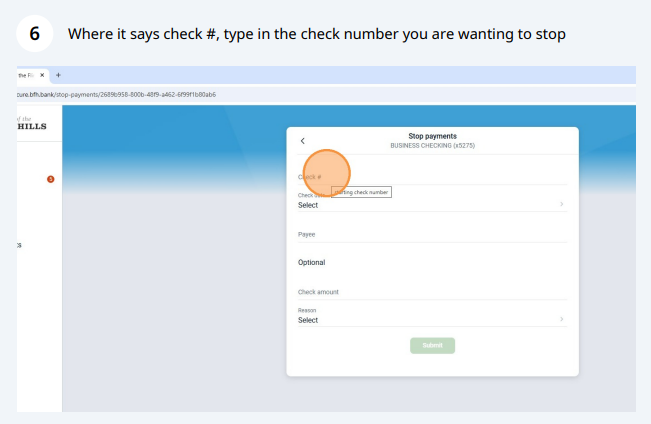
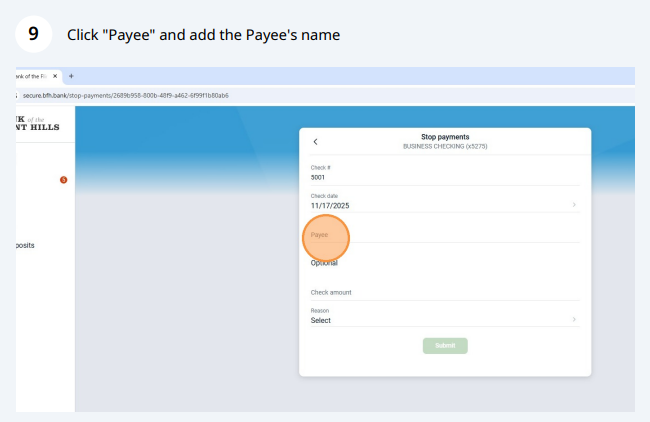
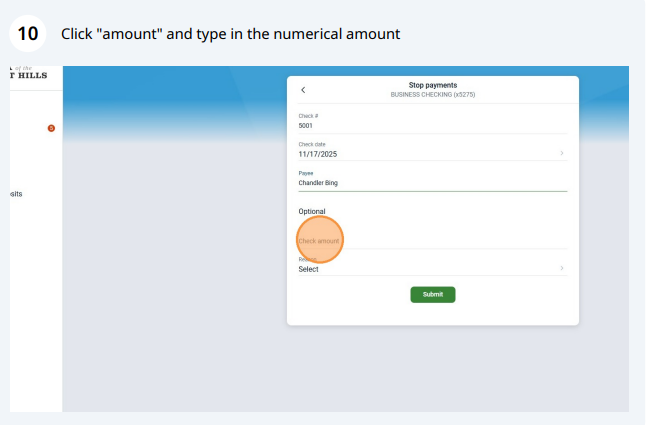
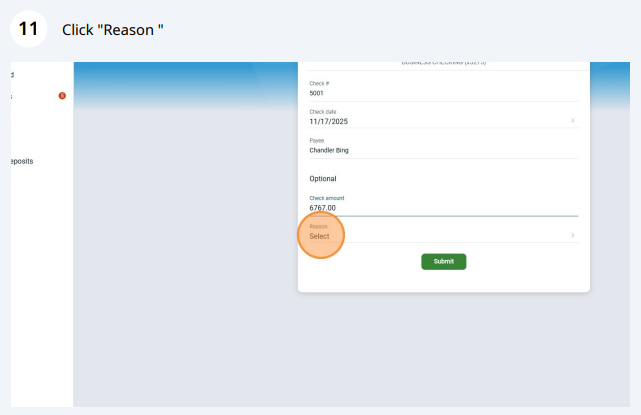
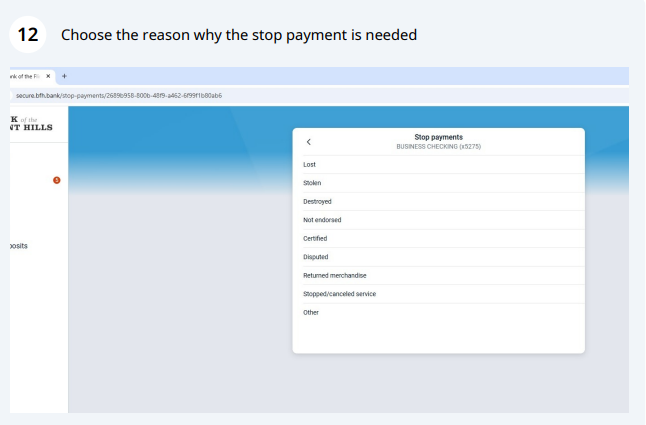
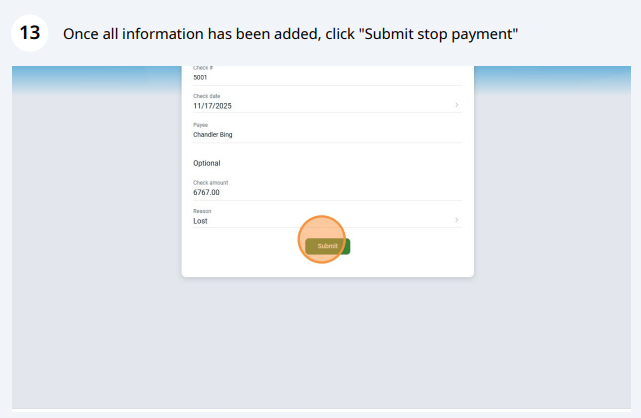
Select A single check, and then complete these fields:
Check amount
Check #
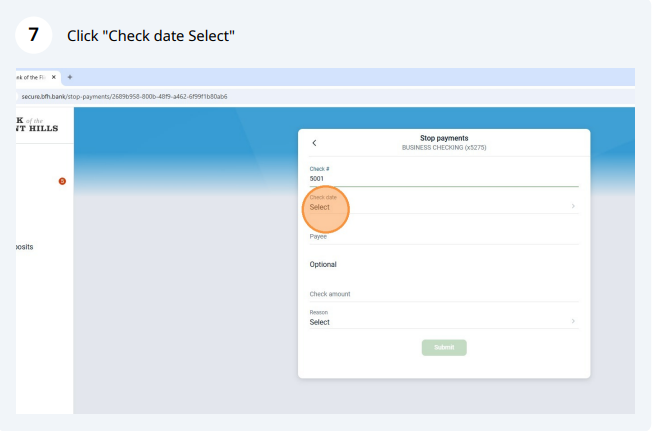
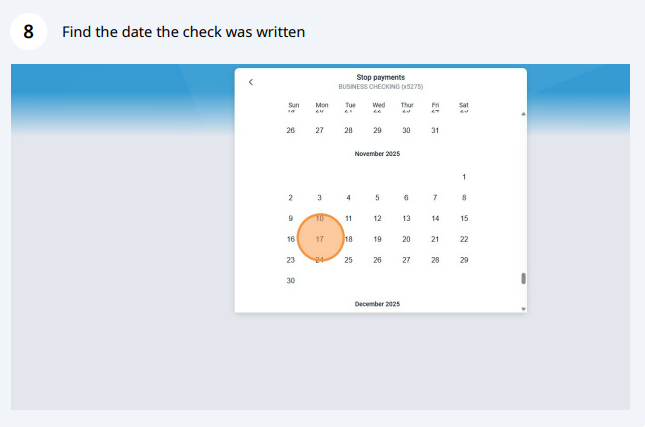
Check date
Payee
Reason
Select A range of checks, and then complete these fields:
Start check #
End check #
Reason
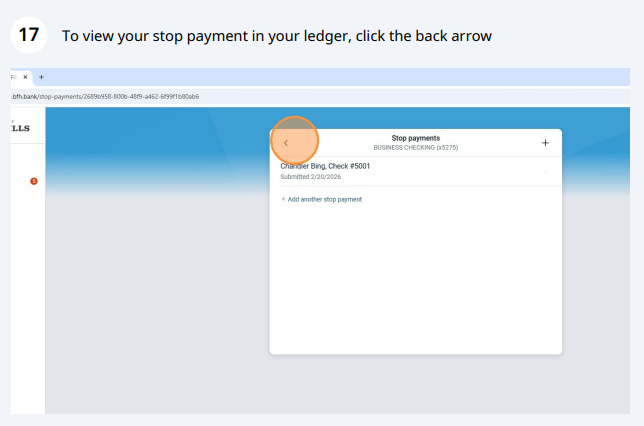
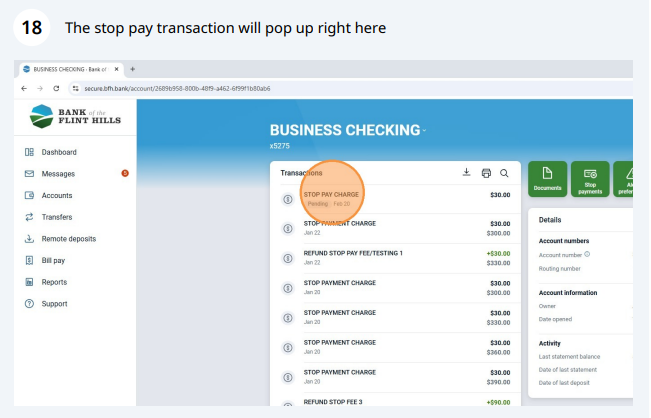
Select Submit
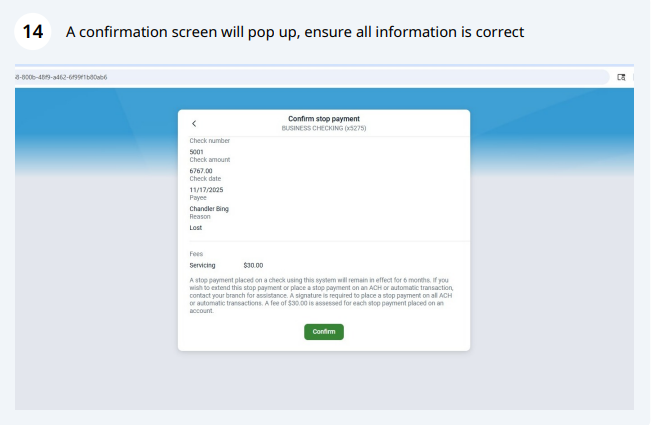
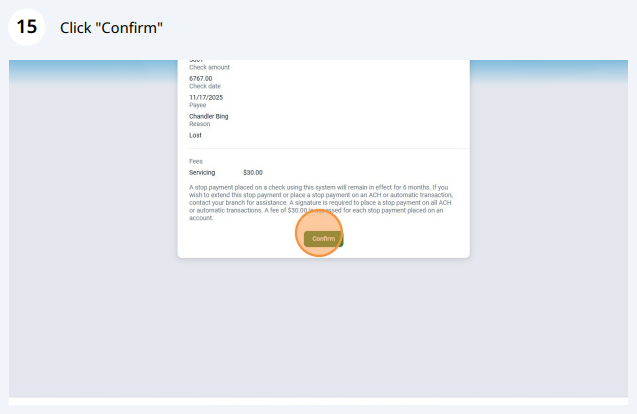
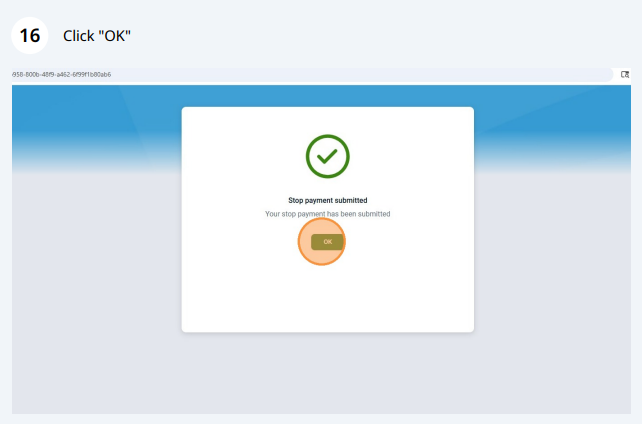
Select Confirm
Step-by-step guide with pictures:
Was this article helpful?
Sorry about that! Care to tell us more?