
How to make a deposit
1. Log in to the system and select Transactions from the left main menu.
2. Under Check Processing, select Remote Deposit Scan.
3. If Device Control has not already launched, the system will prompt you to do so before continuing. Follow the on-screen instructions to proceed.
4. The Check Processing: Remote Deposit Scan page appears. Complete the required fields designated by an asterisk:
Location: Select the account location where the check is processed. Once you select a location, the Device Control updates to a ready status.
Payment Origin: Select the type of payment.
Name on Account (Grayed-out): A field for the name of the check writer. The information for this field auto-populates for a previously created customer profile in the system once the check is scanned.
Amount: Enter the amount for the check.
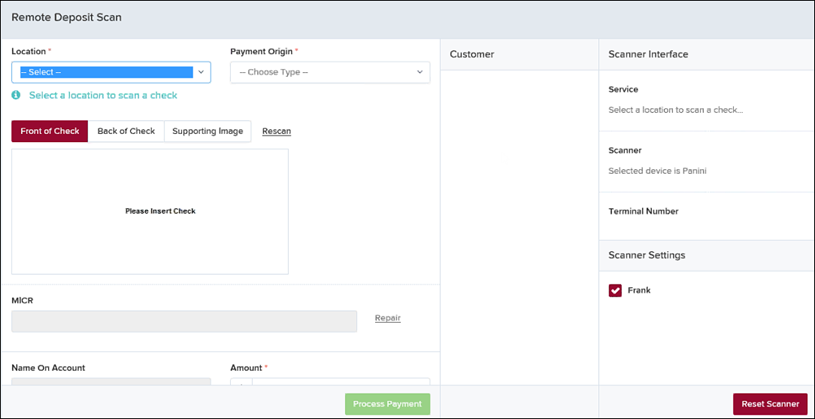
NOTE: Customer data fields remain unavailable until a check has been scanned.
5. Place the check in the scanner, and then scan the check item.
6. If the check could not be read properly, a MICR Repair prompt appears. Click here to learn about repairing the MICR line