
Editing an Approved Transaction
A transaction that has been approved but not yet processed or voided can still be edited. You may change the transaction amount and/or the deposit date (Effective Date).
Once the transaction reaches the financial institution’s cutoff time and moves to Processed status, it can no longer be edited. Any edits made after processing will not be applied.
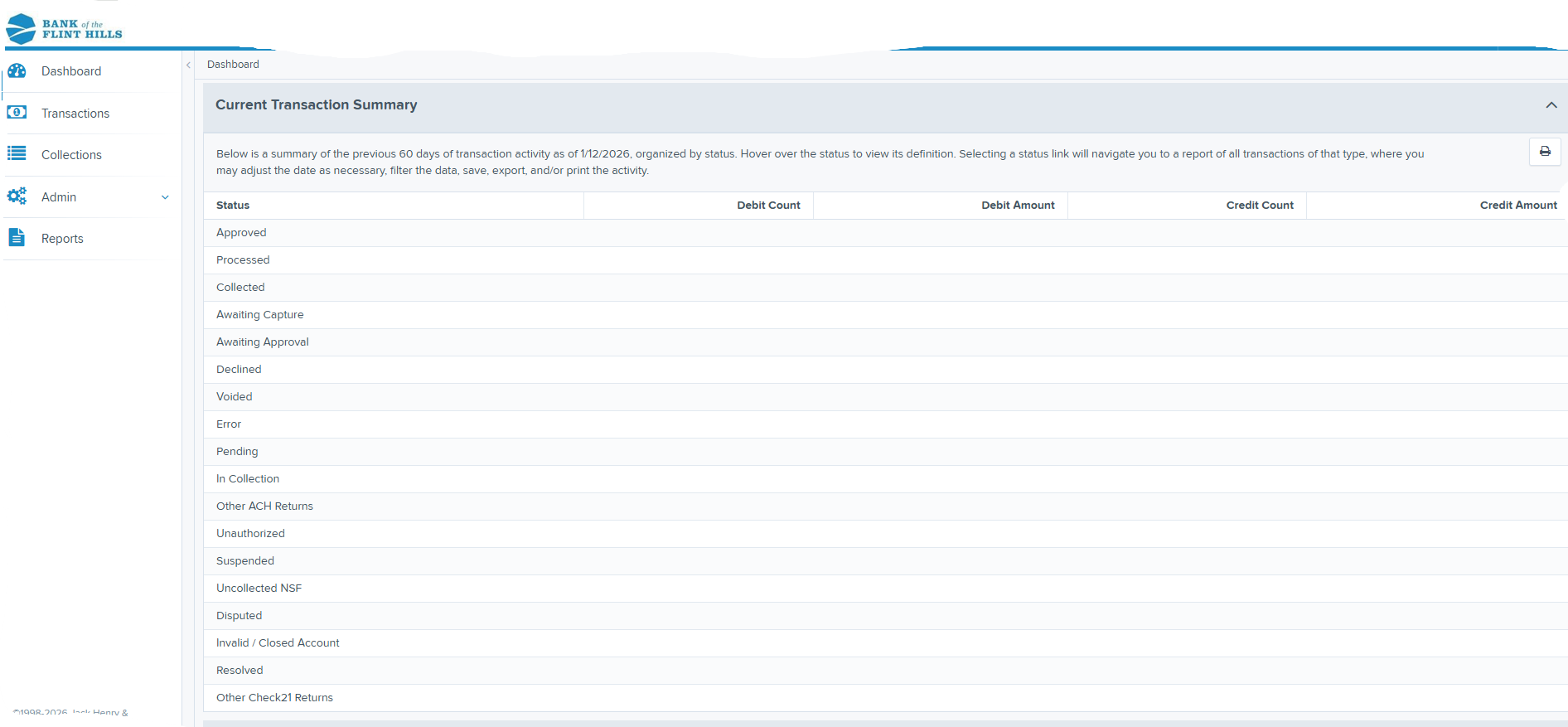
When you log in to the application, the Dashboard appears. The Dashboard includes the Current Transaction Summary, which shows the status of transactions from the past 60 days.
Transaction Statuses
Transactions may appear in different statuses during processing. The table below explains what each status means.
Status | Description |
|---|---|
Approved | The transaction has been verified and will be processed at the financial institution’s cutoff time. |
Processed | The transaction has already been sent for processing. No changes can be made and the transaction cannot be voided. |
Collected (ACH Only) | The transaction was originally returned for insufficient funds (NSF) but was resubmitted and the funds were successfully recovered. |
Awaiting Capture | Status used only for credit card transactions that are waiting to be captured. |
Awaiting Approval | The transaction amount exceeded the user’s approval limit and must be approved or voided by an authorized user. |
Declined | The transaction was declined by the system and will not be processed. This may occur if authorization or system limits are exceeded. |
Voided | The transaction has been canceled and will not be processed. Transactions cannot be voided once they reach Processed status. |
Error | A system error occurred during processing. Contact your support team for assistance. |
In Collection (ACH Only) | The transaction was returned for insufficient funds and is being resubmitted in an attempt to recover payment. |
In Research | The transaction is being reviewed by a support team. |
Unauthorized | The transaction was returned due to unauthorized payment codes (R05, R07, R10, R29, or R51). |
Uncollected NSF (ACH Only) | The transaction was returned for insufficient funds and attempts to recover the payment were unsuccessful. |
Suspended | The transaction exceeded system limits and has been temporarily suspended. |
Disputed (ACH Only) | The receiving account holder disputed the transaction and the funds were reversed. |
Invalid/Closed Account (ACH Only) | The receiving bank returned the transaction because the account number was invalid or the account has been closed. |
Resolved | The transaction has been marked as resolved, meaning no further action is required. |
NOTE: Selecting any status from the Current Transaction Summary will automatically generate a report showing transactions in that status for the current day.
Steps to Edit an Approved Transaction
Log in to the application.
From the Dashboard, select the Approved link in the Current Transaction Summary.
A list of approved transactions will appear. Select View next to the transaction you want to edit.
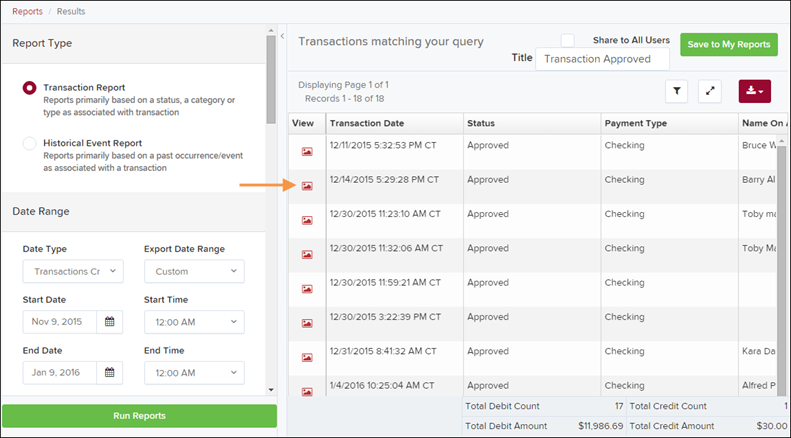
The Transaction Details page will open. To edit the transaction amount, select Edit next to the Sale field.
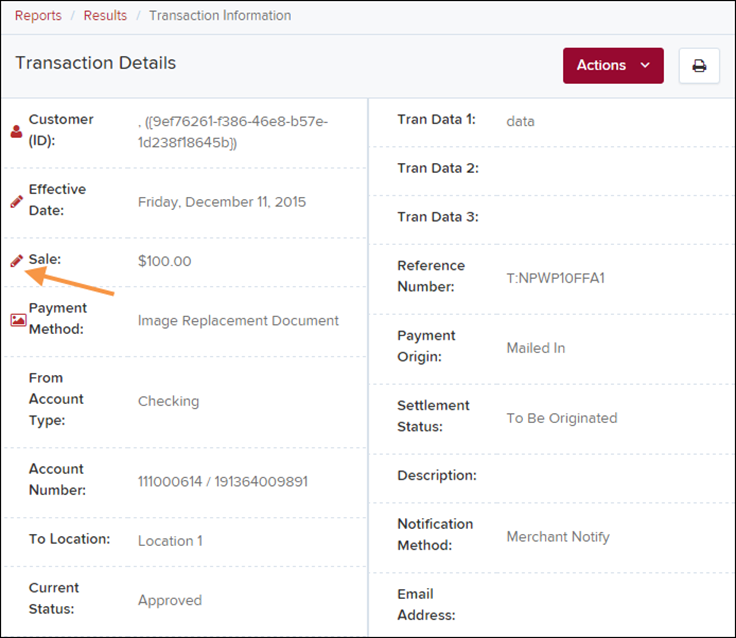
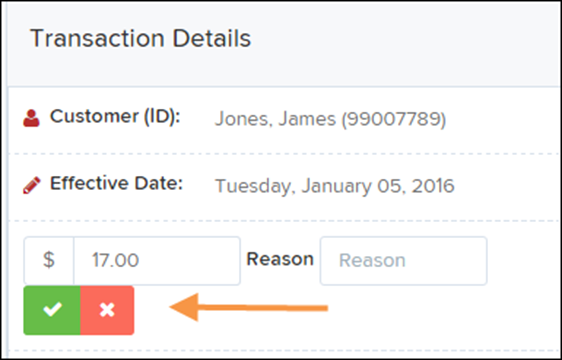
The Sale amount field will become editable. Enter the correct amount and provide a reason for the change.
Select Save to apply the change. Selecting Cancel will discard the change.
Editing the Effective Date
You can also change the Effective Date, which determines when the transaction will be processed.
On the Transaction Details page, select Edit next to the Effective Date field.
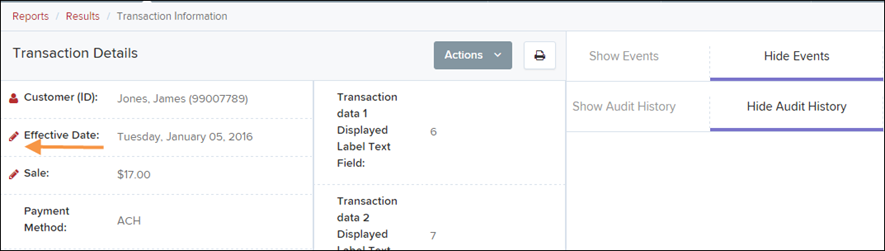
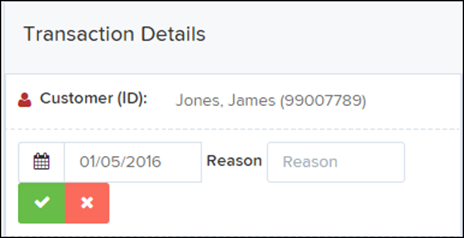
The field will become editable. You can either:
Select a date using the calendar, or
Type the date in MM/DD/YYYY format.
Enter the new date and provide a reason for the change.
Select Save to apply the update.
NOTE: Effective date changes must be made before the transaction is processed at the cutoff time. After processing, the date can no longer be changed.