
How to complete Business Bill Pay Enrollment
Edited
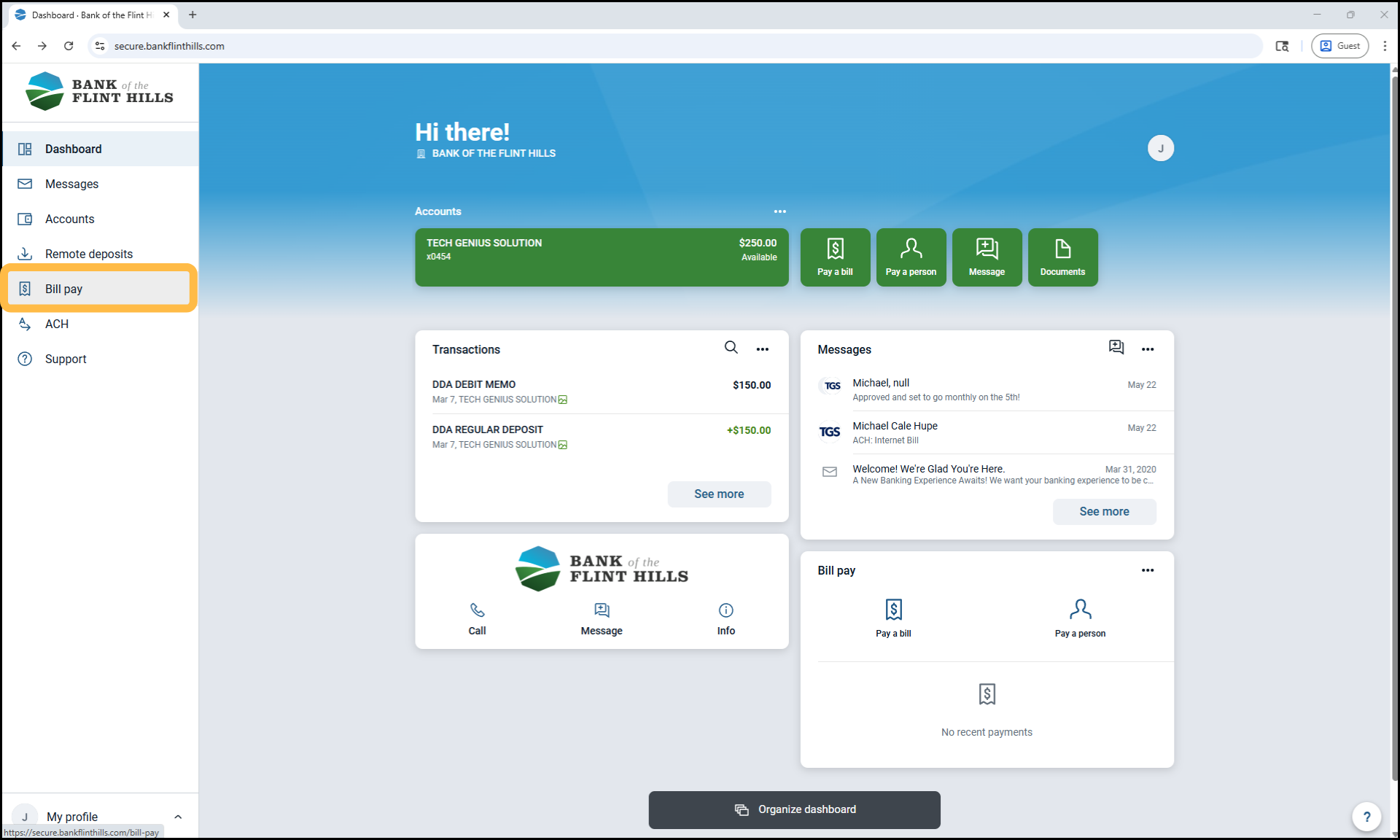
1. From the dashboard, select 'Bill Pay' from your lefthand menu.
Note: If your business only more than one payment product enabled, it may appear under the 'Payments' section.
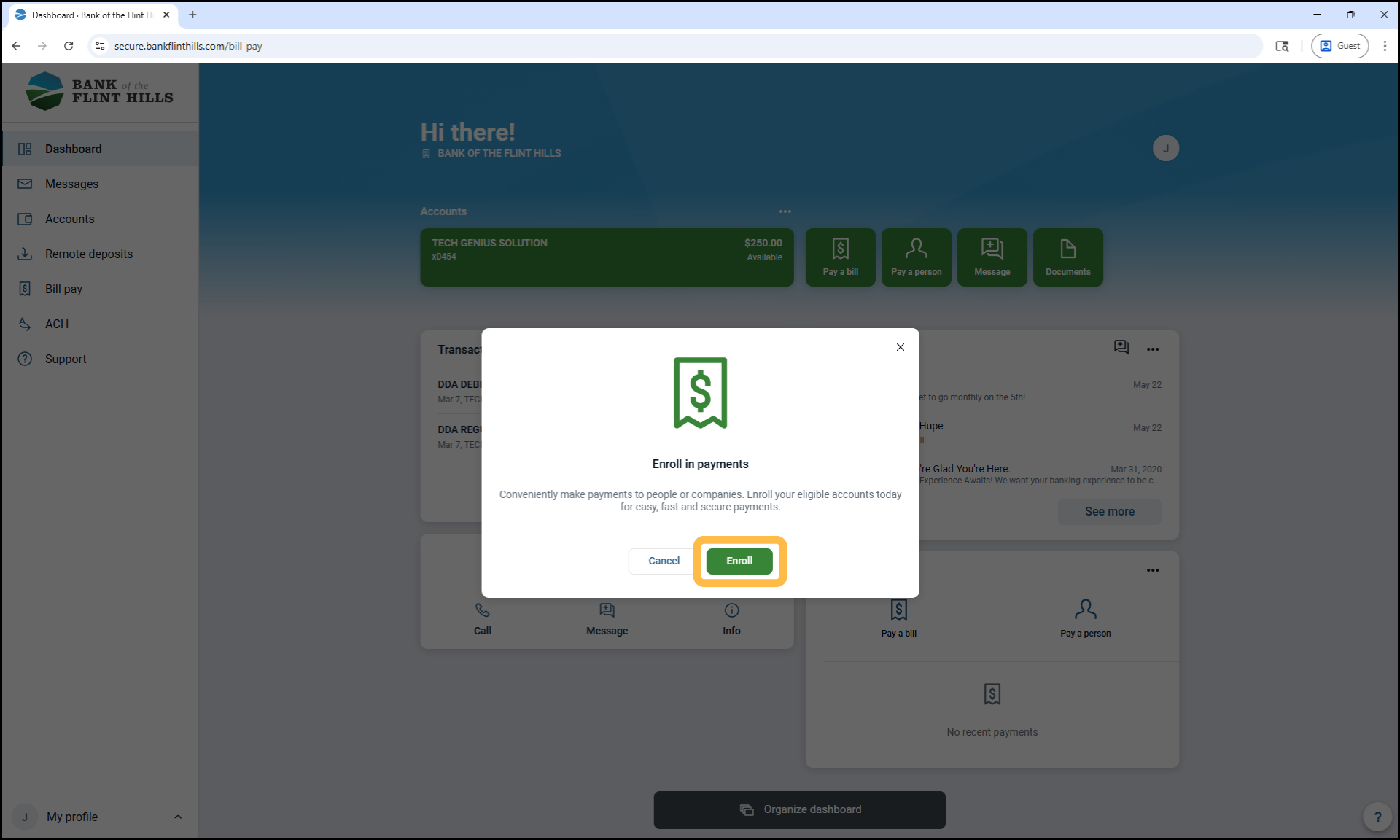
2. Click 'Enroll' to start the setup process.
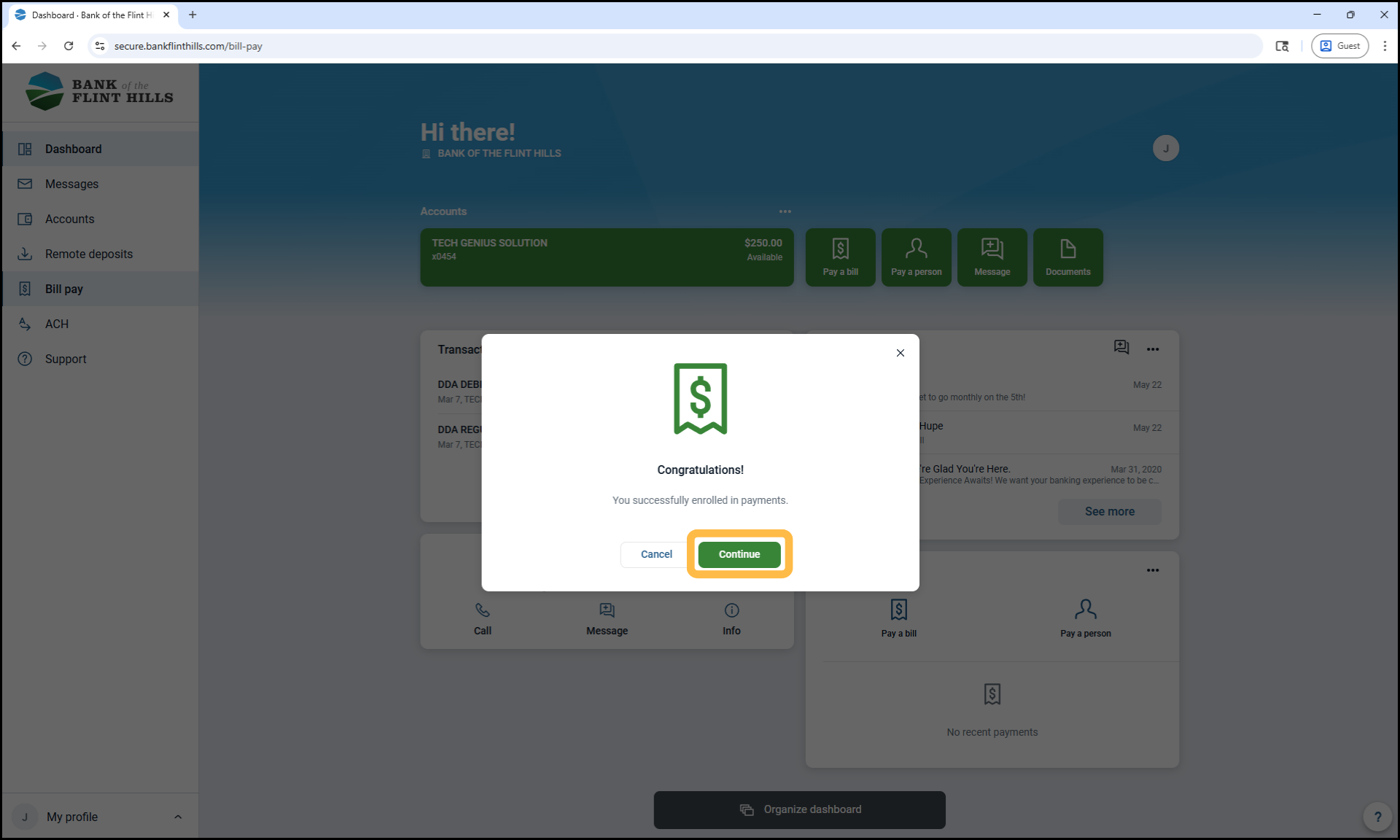
3. Click 'Continue' after the electronic enrollment process has completed.
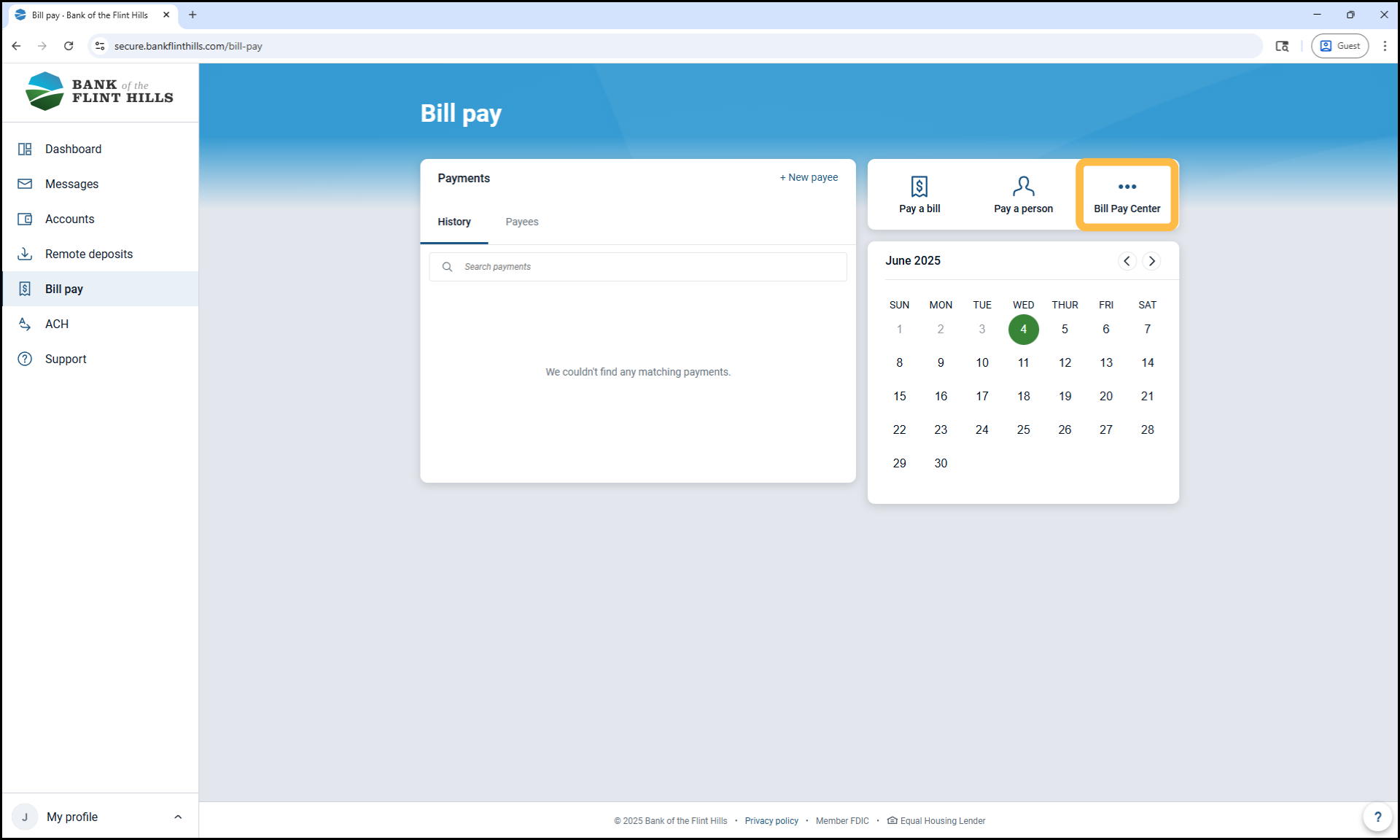
4. Click on the 'Bill Pay Center' option in the upper right-hand corner to go to the full Bill Pay Dashboard.
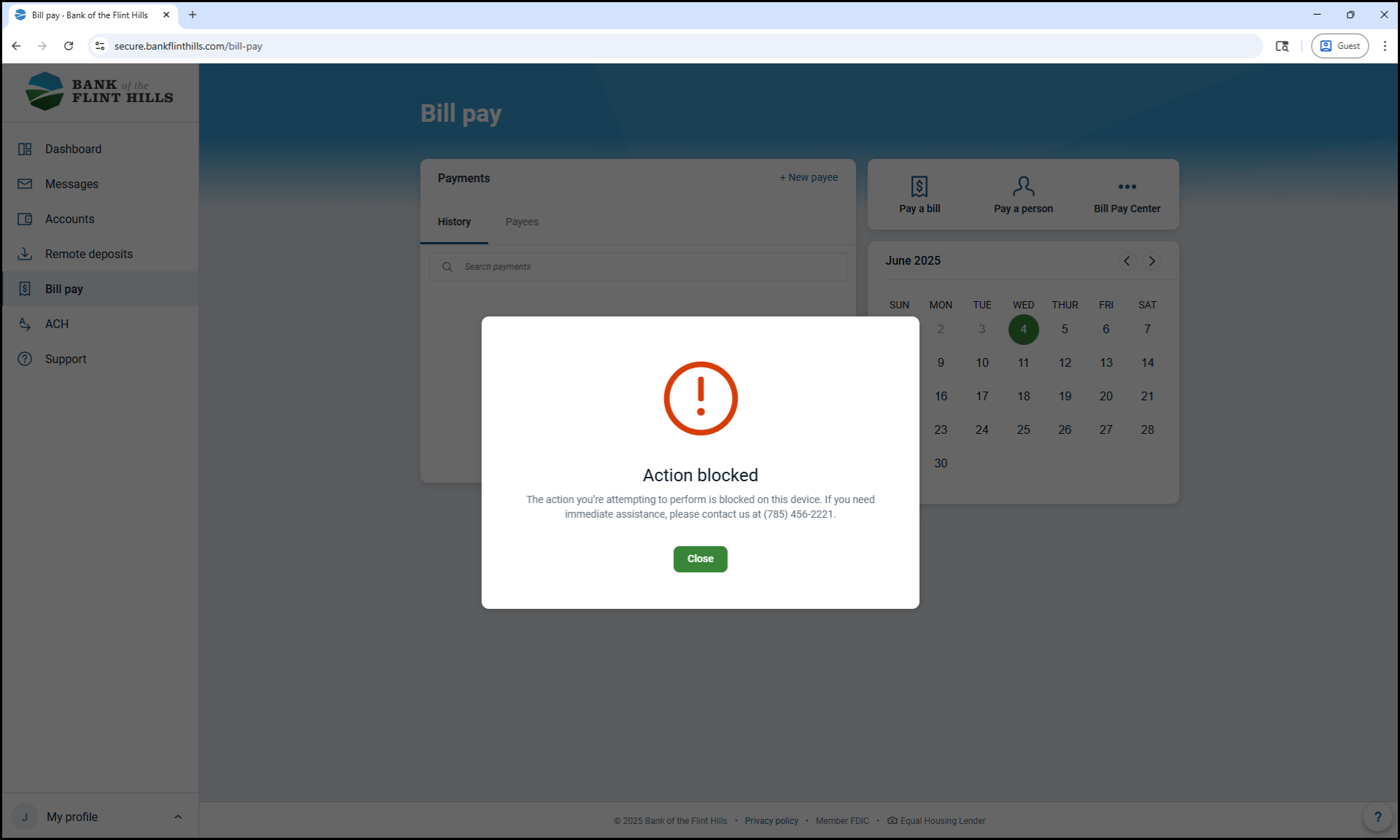
5. If this is your first time accessing the Bill Pay Center, the action will be blocked as a security measure. Please call in to verify your device and then click on the 'Bill Pay Center' button again.
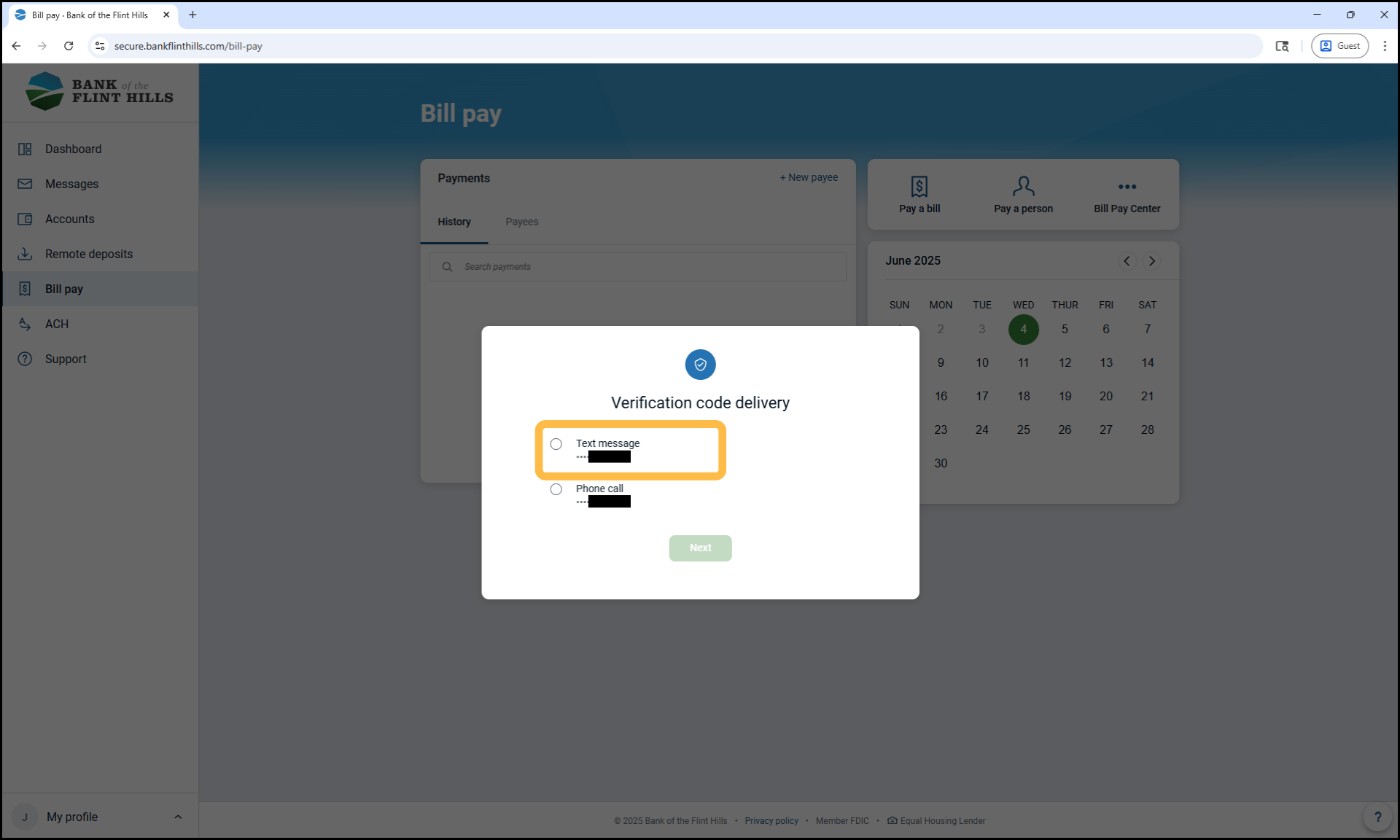
6. Verify your identity with the 2FA method of your choice.
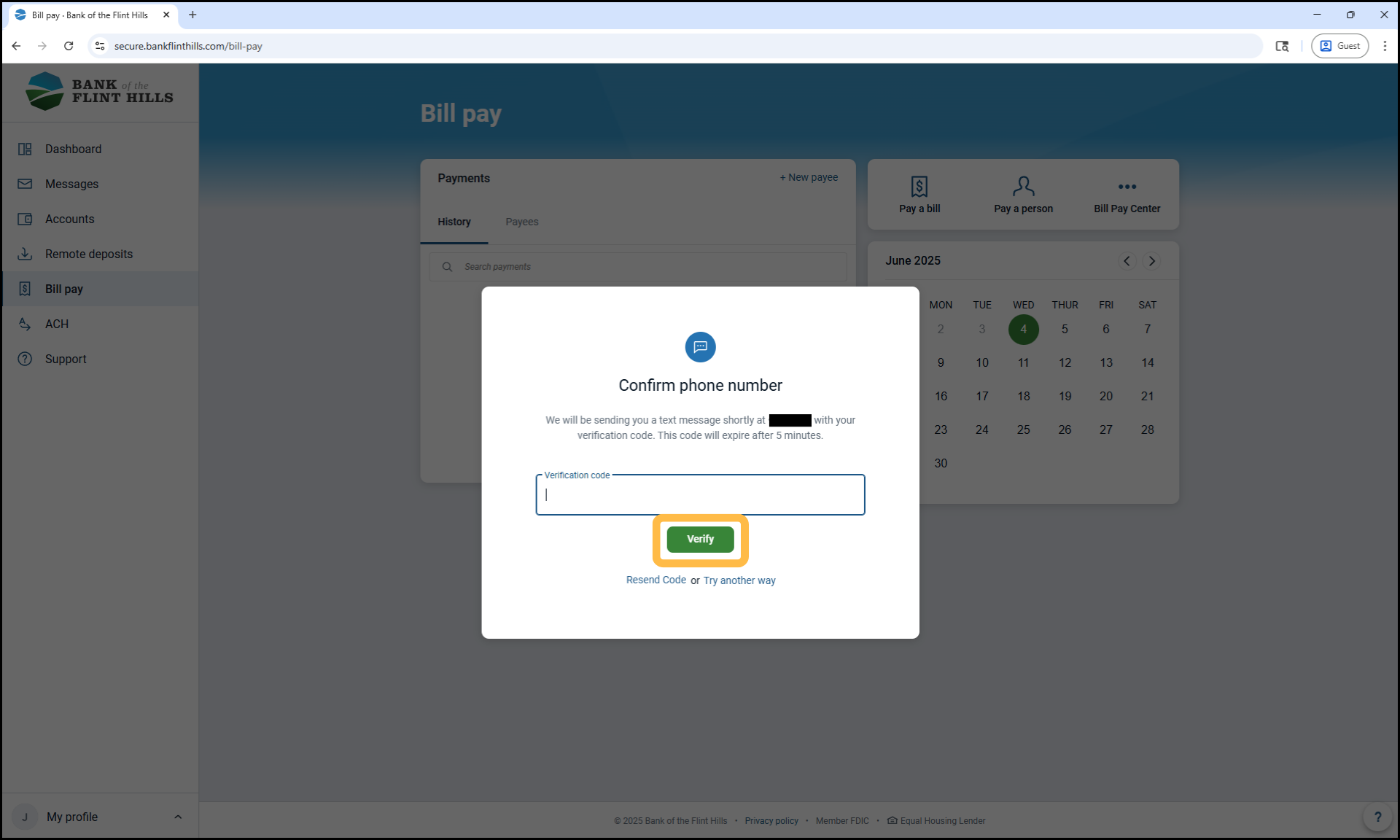
7. Enter the code you get and click 'Verify'.
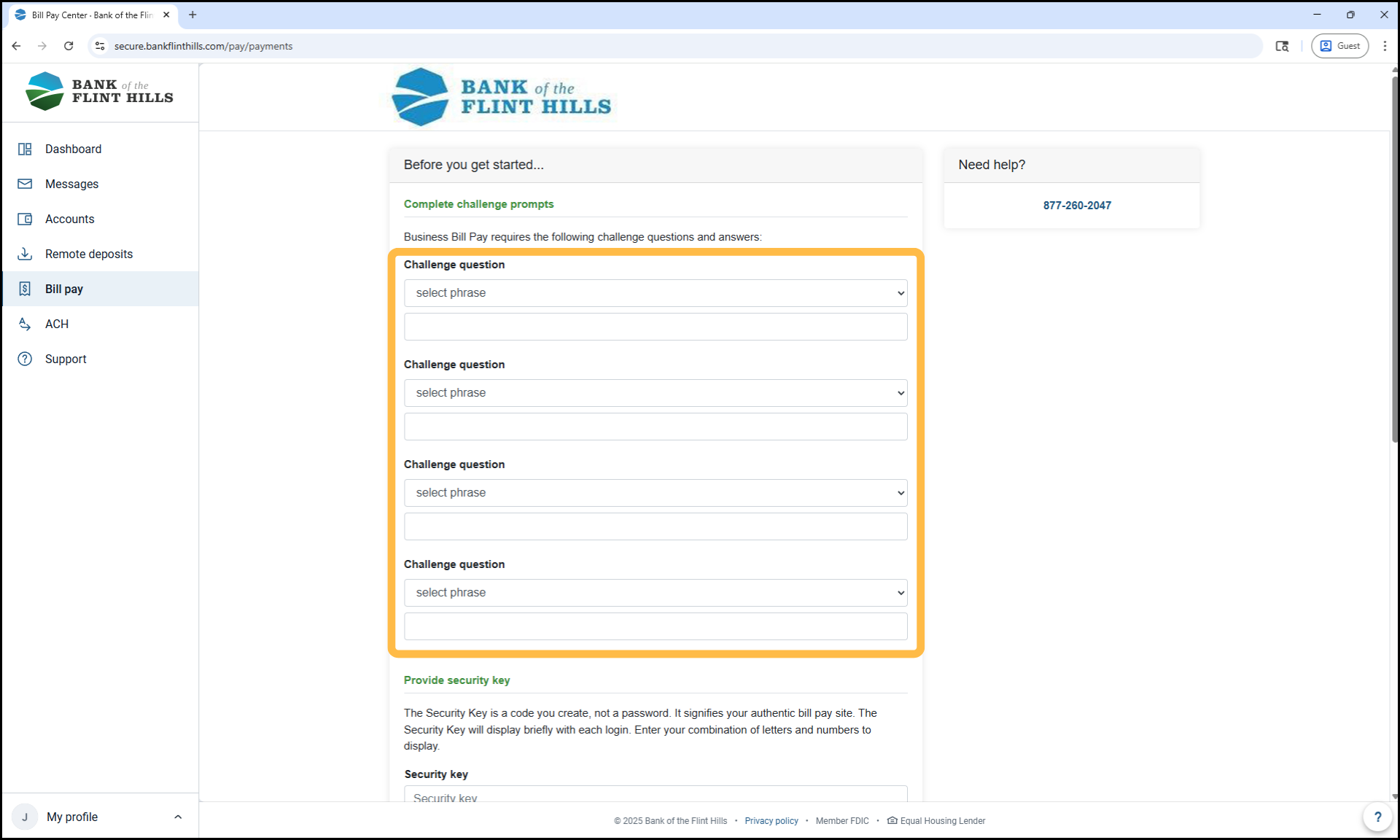
8. You will now complete 4 Challenge Questions that will be used at various times within the Bill Pay Center product. These are only used when in the full Bill Pay Center.
9. Next you will create a Security Key. This can be whatever you would like it to be. It should have one uppercase and lowercase letter as well as one number.
If you make the key too complex or do not include an uppercase, lowercase and number when you click submit it will fail the verification and you will have to start over with your security questions above.
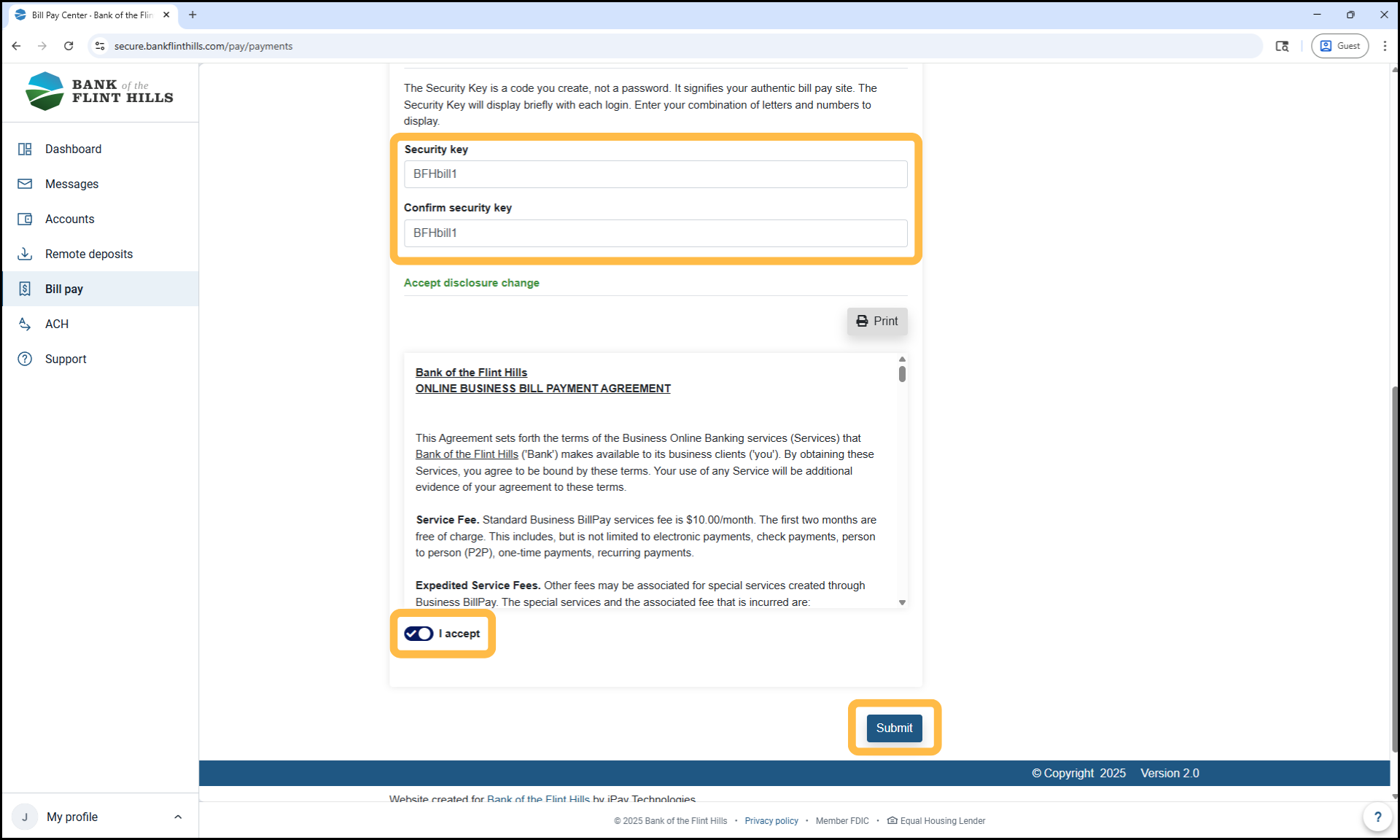
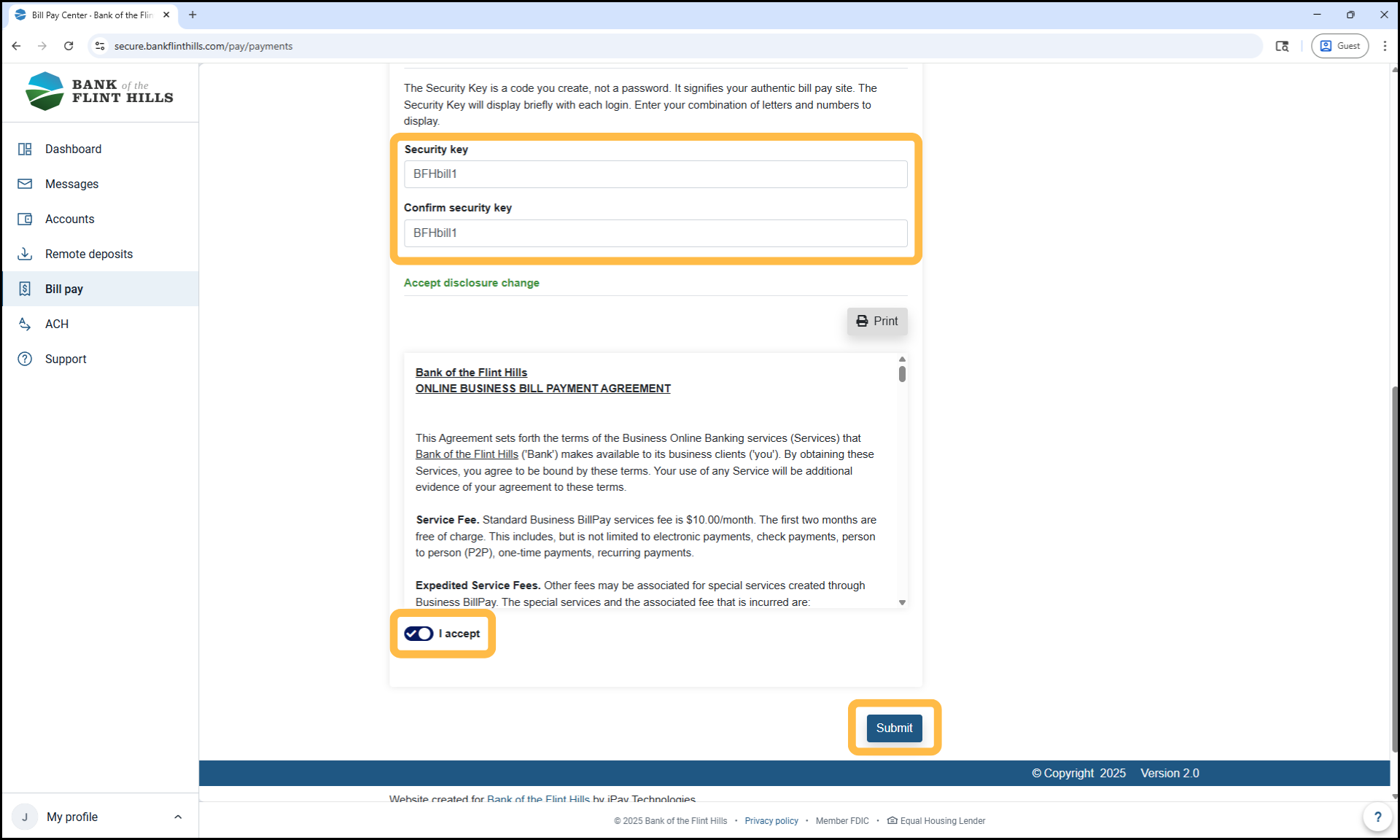
10. Click the 'I Accept' toggle and then the 'Submit' button.
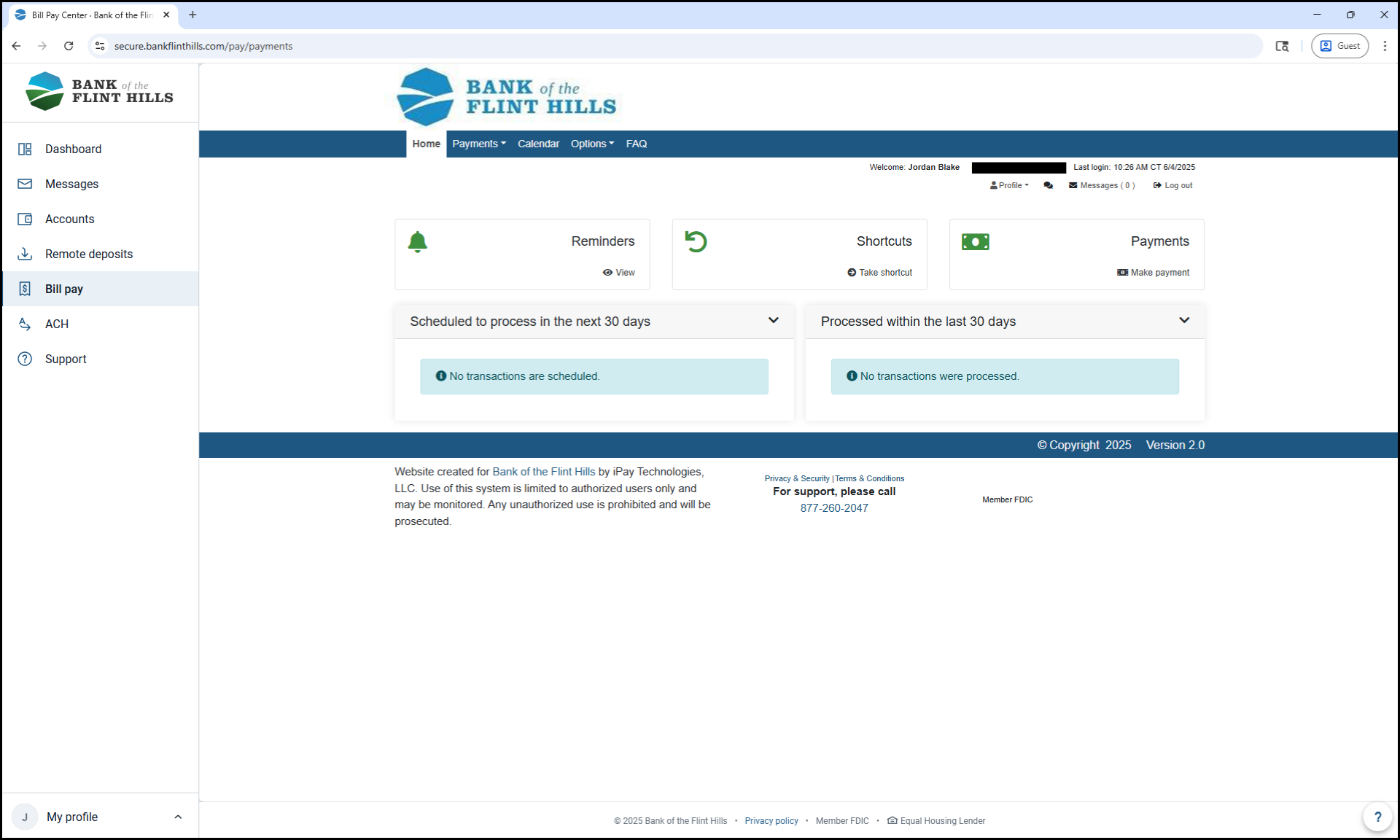
11. Once you see the dashboard of the Bill Pay Center, you have completed the setup and enrollment process for Business Bill Pay.
Was this article helpful?
Sorry about that! Care to tell us more?