
How to enroll in eDocuments
IMPORTANT: The following can only be completed by a user who is an admin for the organization. Non-admin users who attempt to enroll will see an ‘oops’ error and not be able to complete the following steps.
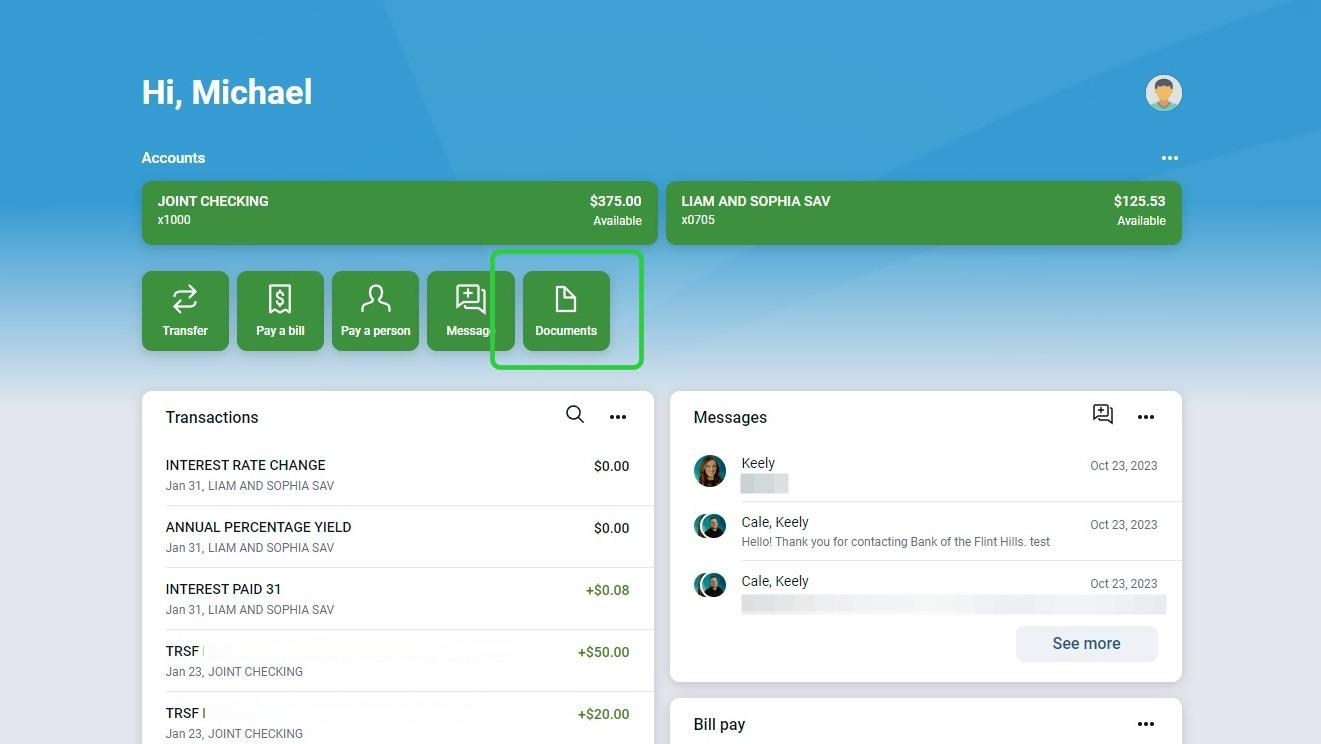
1. Click on the Documents button.
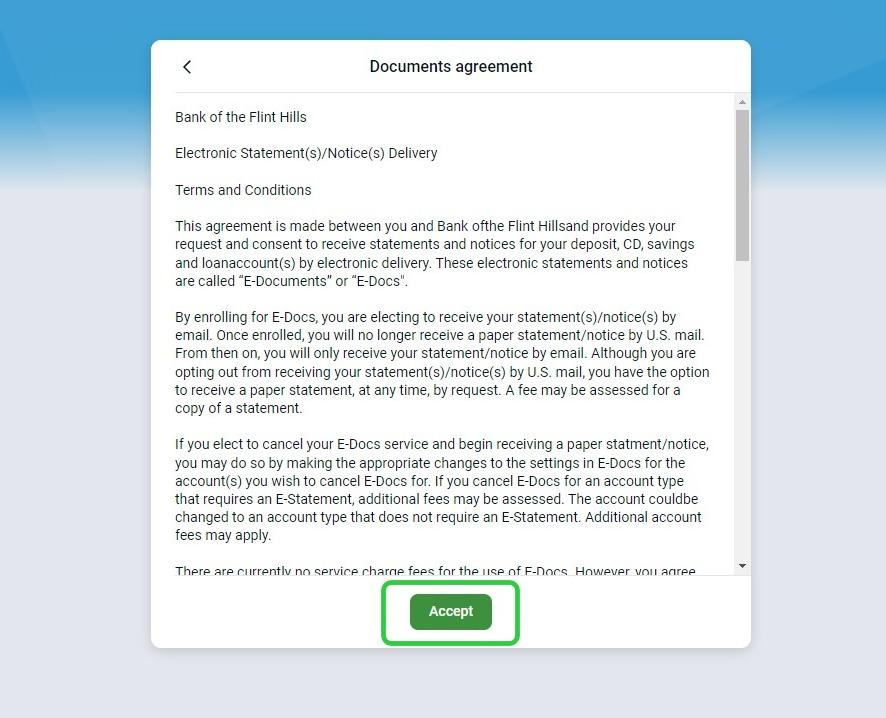
2. Review the agreement and click 'Accept'
3. Review the email address you'd like to receive notifications at and then use the check box to enroll available accounts.
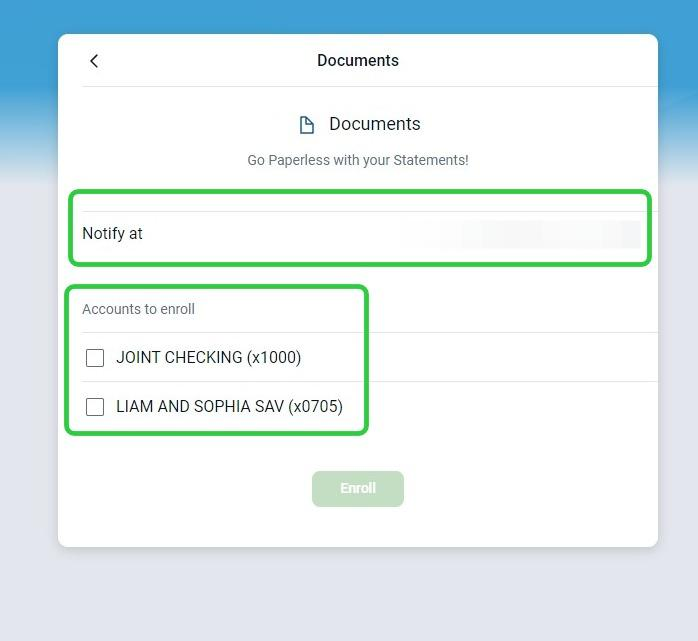
Note: The 'Notify at' field displays the email that we have for you on file. If you need to modify the notification email, you may do so after completing the enrollment process in the advanced settings menu.
4. Click Enroll
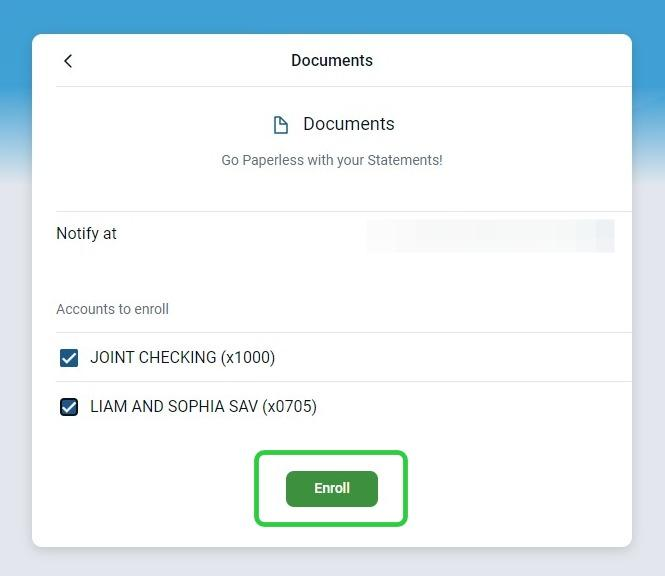
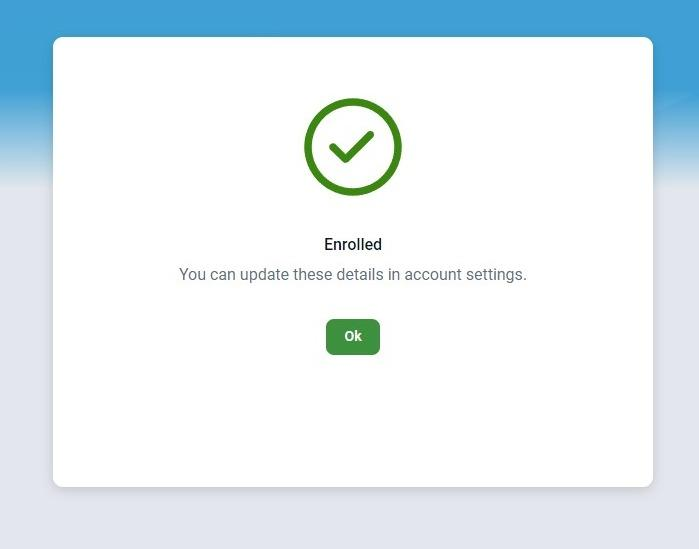
5. If the enrollment is successful, a success screen will display, stating Enrolled. Select the Ok button to acknowledge the save.
Please note: E-Statements become available after the next statement cycle following enrollment. This means you will be able to see e-statements for the account going forward from the date you enroll. If you need a previous statement, please contact Customer Service for assistance (support@bfh.bank).