
Logging in to RDC
To access the Remote Deposit Complete application, your SmartPay Admin or bank representative will provide you with a web link (URL). It is recommended that you save this link to your bookmarks or favorites so it is easy to access in the future. You will also be provided with a username, temporary password, and company name that you will use to log in. Only the password is case-sensitive.
NOTE: If your company uses single sign-on (SSO), you will not log in through SmartPay Business. Instead, you will use your financial institution’s remote deposit capture link, which will take you directly to the SmartPay Business Dashboard.
Logging In for the First Time
Go to the SmartPay Business login page using the link provided to you.
Enter your User Name, Password, and Company name in the appropriate fields.
Click Log In.
When logging in for the first time, the system will require you to create a new password.
Passwords expire every 90 days and must meet the following requirements:
At least 1 uppercase letter
At least 1 lowercase letter
At least 1 number
At least 1 special character
12–15 characters in length
After entering your new password, select Update Password to save the change.
NOTE: If you forget your password, you can request a new one. In order to do this, a valid email address must be saved to your user profile. Your SmartPay administrator can update your profile if needed.
Creating a Secret Question
A secret question helps verify your identity if you forget your password. When you request a password reset, you may be asked to answer your secret question before a temporary password can be sent to your email address.
In order for this feature to work, an email address must be saved to your user profile. If an email address is not attached to your profile, you will not be able to receive a temporary password. Your SmartPay administrator can add or update the email address for your profile if needed.
Secret questions do not have to be written as full questions, and neither the question nor the answer is case-sensitive.
Once an email address has been added to your profile, follow these steps to set up your secret question:
Log in to the application and select My Settings from the user drop-down menu.
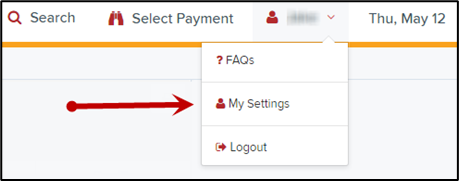
The system will ask you to enter your current password to access the My Settings page.
On the My Settings page, you can update the following items if needed:
Change your password
Create or update your secret question and answer
Create or update your authorized caller identification phrase and response
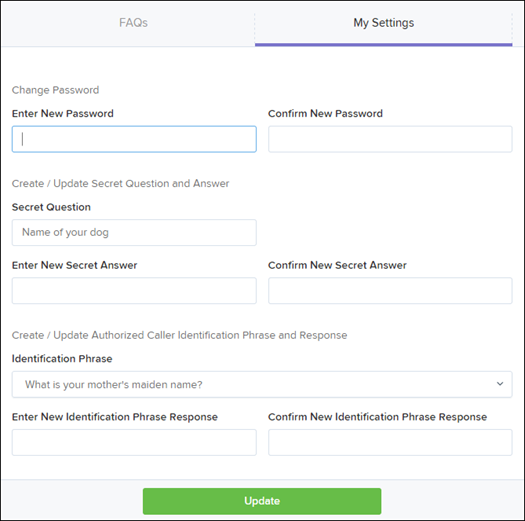
Click Update when you are finished making changes.
NOTE: Users who log in through single sign-on (SSO) do not need to set up a secret question.
Choosing an Identification Phrase
The EPS Support team assists users with questions about EPS applications. In order to protect account information, only users who have been designated as authorized callers by the administrator can receive support directly.
If you have been set up as an authorized caller, you will need to create an identification phrase and response. This helps verify your identity when contacting EPS Support.
Authorized callers can contact EPS Support for assistance at 877-542-2244.
NOTE: If someone who is not listed as an authorized caller contacts EPS Support, they will be directed to their organization’s primary support contact.
To create or update your identification phrase:
Log in to the application and select My Settings from the user drop-down menu.
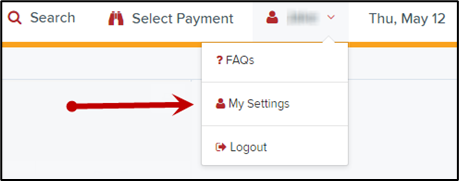
Enter your current login password to access the My Settings page.
In the Identification Phrase section:
Enter your response in the Enter New Identification Response field.
Enter the same response again in the Confirm New Identification Response field.
This response will be used by EPS Support to verify your identity if you call for assistance. From this page, you can also update your password or secret question if needed.
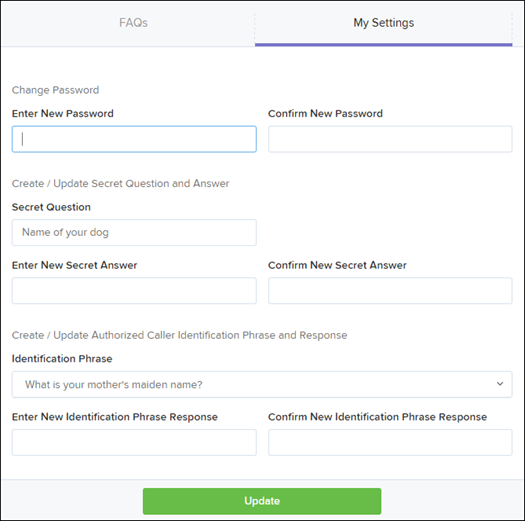
Click Update when you are finished.