The Open Deposits Page
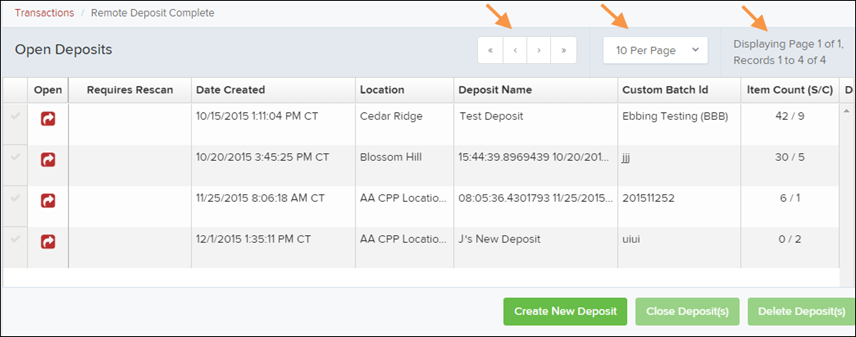
The Open Deposits page shows deposits that have been started but have not yet been submitted. This is where you can review, edit, or finish preparing deposits before sending them to the bank for processing.
How to Access the Open Deposits Page
Log in to the application.
From the left menu, select Transactions.
Under Check Processing, select Remote Deposit Complete.
The Open Deposits page will appear.
Sometimes multiple deposits (also called batches) may be listed on this page. The tools below can help you easily find and manage your deposits.
Features on the Open Deposits Page
Navigational Paging
Use the forward and backward arrows to move between pages of deposits. You can also select a page number to jump directly to that page.Per Page Size
This option allows you to choose how many deposits appear on each page.Displaying Page Prompt
This shows the current page number and the number of deposits being displayed.Sorting
You can click on any column header to organize the information. Selecting the header once sorts the information in ascending order, and selecting it again sorts it in descending order.Requires Rescan Column
This column shows whether a check needs to be rescanned due to image quality or scanning issues. Clicking the column header will group together any items that require a rescan.Custom Batch ID
If this column is shown, it displays a unique identification number for each deposit. This may be used by your organization to track deposits.
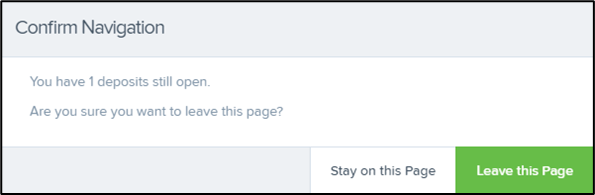
NOTE: If you try to leave the Open Deposits page while you still have deposits open, the system will ask you to confirm that you want to leave the page before continuing.