Viewing Transaction Details
You can view detailed information about checks included in a deposit by using the Deposit Results Report. This allows you to review the status of individual checks and see how they were processed.
Steps to View Transaction Details
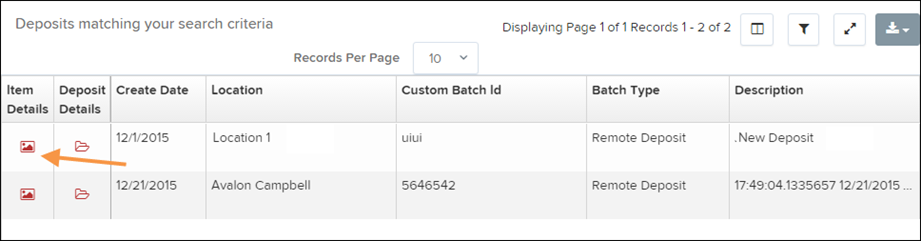
From the Deposit Results page, select View under the Item Details column for the deposit you want to review.
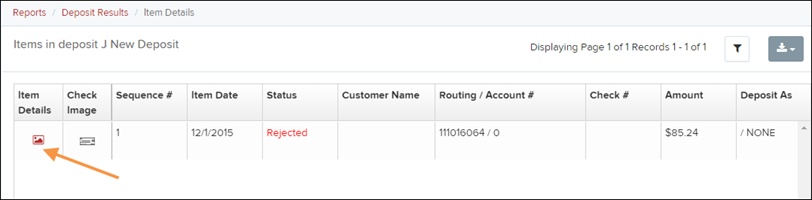
A list of the items in the deposit will appear. To view more details about a specific check, select the view icon under the Item Details column.
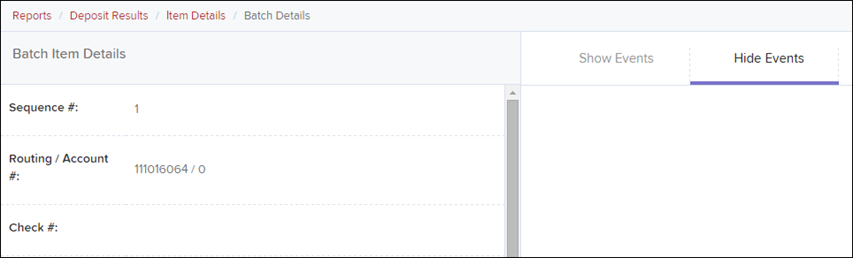
The Batch Item Details page will appear.
Batch Item Details Fields
The Batch Item Details page provides detailed information about each check in the deposit.
Field | Description |
|---|---|
Amount | The final amount of the check after processing. If the amount shows $0.00, the check was rejected or identified as a duplicate and will not be included in the deposit total. |
Amount Source | Indicates how the check amount was determined. Read means the system captured the amount automatically, while Keyed means the amount was manually entered during processing. |
Check # | The serial number of the check taken from the MICR line. |
Customer Name | Displays the Name on Account if that information was previously entered for the customer. |
Deposit As | Indicates how the check will be processed: ACH or Check 21 (IRD). |
Deposit Item | Provides links to view or print the check image and review the processing steps for the item. |
Image Quality Pass | Shows whether the scanned check image meets image quality standards. |
Item Date | The date the check was scanned into the deposit. |
Item Status | Indicates the current status of the check in the deposit (see definitions below). |
Routing/Account # | Displays the routing and account number captured from the MICR line when the check was scanned. |
Scanned Count | Shows how many times the item has been scanned. |
Sequence # | Indicates the order of the check within the deposit. |
Item Status Definitions
Each check in the deposit may display one of the following statuses:
Deposited – The check has completed processing and is included in the deposit. It will be processed at the financial institution’s designated cutoff time.
Error – The item was sent for processing but an error occurred that prevented it from completing processing.
Duplicate – The check was identified as a duplicate and will not be processed with the deposit.
In Review – The item is waiting for additional processing steps such as MICR repair or amount verification.
Needs Rescan – The check image quality is poor or incomplete. The deposit will reopen so the item can be rescanned.
Open – The item was scanned successfully but the deposit has not yet been submitted.
Rejected – The item was rejected and will not be processed. This may occur due to issues such as poor image quality, invalid MICR information, or incorrect payment details.
Viewing Event History
You can also view the full processing history for a check.
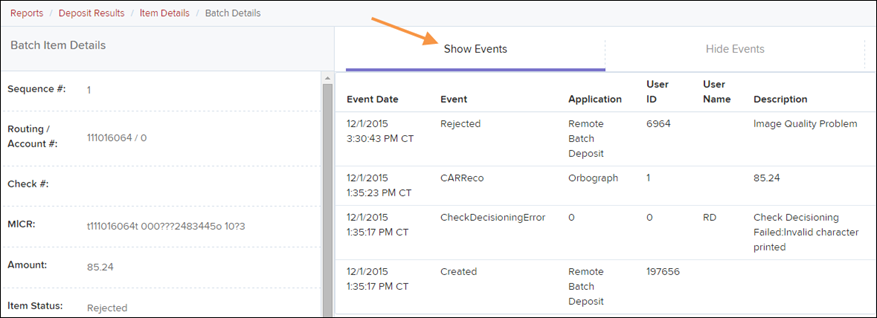
At the top of the Batch Item Details page, select Show Events.
The system will display a timeline of events showing the steps the item has gone through during processing.